


 Parental Control
 WhatsApp Tracker
 LINE Tracker
 Phone Surroundings
 GPS Phone Location
 Geofencing App
 Hidden Call Recorder
 Keylogger for Android
 Lock App



ClevGuard Support: Monitor Devices with Others' Permission.
Is WhatsApp safe for your child? Private messaging helps families stay connected, but it can also leave parents unsure who their child is talking to or why a conversation has become upsetting. The right setup should help you spot concerns, talk them through and set sensible boundaries.
For parents who want a clearer picture of their child’s WhatsApp activity, we recommend KidsGuard for WhatsApp. Below, we explain how it can help, what WhatsApp parent-managed accounts offer, and how to choose a supervision approach that fits your family.
Table of Contents
1. Our Recommendation: KidsGuard for WhatsApp
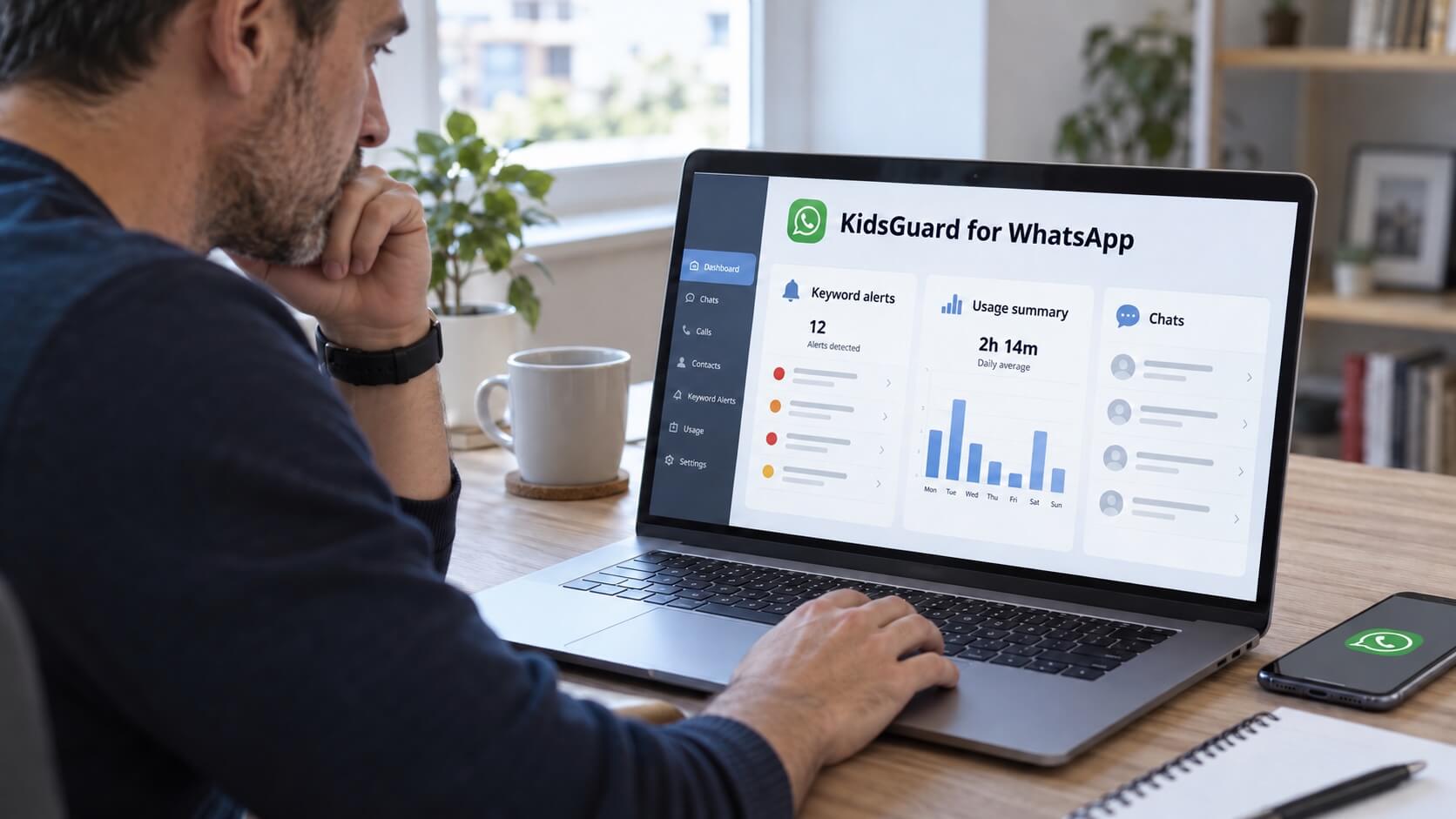
KidsGuard for WhatsApp helps parents review supported chats, shared media and activity in one dashboard. If you need more visibility into your child’s messaging, it gives you a place to start a conversation about what is happening and where they may need support.
It is especially useful when your concern goes beyond choosing who can contact your child. You might want to understand a troubling exchange, notice language that needs attention or help your child reduce excessive messaging. These are the situations where its monitoring and management features become relevant.
Understand a conversation before you step in
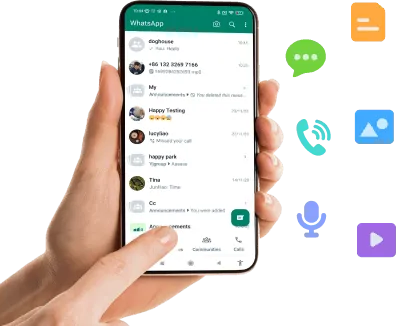
A child may tell you that a group chat is “just a joke” even when it leaves them upset. Reviewing supported WhatsApp chat history and shared media can help you understand what they are referring to, rather than relying on a single message without context. Use what you learn to ask focused questions: What happened before this? How did it make you feel? What would help?
Bring concerning language to your attention
Keyword alerts can help you notice selected words in supported WhatsApp activity. Choose terms that relate to your family’s actual concerns, then review the surrounding conversation before responding. An alert can be useful for deciding where to look; it does not establish that bullying, a scam or another harmful event has occurred.
Make room for homework, sleep and offline time
Messaging can spill into bedtime or interrupt homework. On supported setups, time-management tools can help you put an agreed routine into practice. Decide the boundary with your child first, including how they should reach you in an urgent situation, so the limit has a clear purpose.
These are the reasons we recommend KidsGuard for WhatsApp for families seeking additional visibility. Start with the features that address your concern, and agree on what you will review. As your child becomes more independent, revisit the arrangement together.
Get started with KidsGuard for WhatsApp
Choose the right setup. Confirm which functions are available for your child’s device, operating system and account. Android, iOS and WhatsApp Web use different setup methods.
Connect the supported device or account. Create your ClevGuard account, select a plan and follow the steps for your chosen device. Have authorized access to your child’s phone for the required setup steps.
Set a focused monitoring routine. Open the dashboard, select the features you need and explain the arrangement to your child. Review concerns in context instead of treating every alert as a problem.
Features vary by setup. KidsGuard compatibility with WhatsApp’s new parent-managed accounts has not been verified for this guide. Confirm your device, account type and required features with our team before purchasing. Use monitoring only where you have the right to supervise the device and account.
2. Is WhatsApp Safe for Kids?
WhatsApp has strong protections for personal conversations, but safe use also depends on who your child interacts with and how they respond. Its end-to-end encryption protects personal messages and calls. It does not make every person in a chat trustworthy or prevent someone from sending an upsetting message.
For example, a familiar-looking account could ask for money urgently. A school group could become a place where classmates repeatedly target one child. A stranger could pressure a child to share a photo. These risks can arise inside an encrypted conversation.
The risks worth discussing at home
Unfamiliar contacts: a person who knows a classmate’s name is not automatically someone your child should trust.
Unexpected requests: messages asking for money, verification codes or personal information deserve a pause and a check with a trusted adult.
Group pressure: your child should feel able to leave a hostile or uncomfortable chat without worrying about losing your support.
Oversharing: discuss who can receive photos, school details and live location information.
Turn those concerns into a short routine: pause before responding, show a trusted adult anything uncomfortable, and use blocking or reporting when needed. Reassure your child that asking for help will lead to support. For more advice, read how to make WhatsApp safer for kids.
Additional monitoring can support that routine when you need more visibility. Regular conversations remain important: they help your child recognize a problem and ask for help even when you are not checking a dashboard.
3. WhatsApp Parent-Managed Accounts: Age Limits and Controls
WhatsApp now offers two native family options: parent-managed accounts for eligible preteens and optional parental controls for teenagers. They help parents manage parts of the messaging experience while keeping personal conversations private.
What is the WhatsApp minimum age?
WhatsApp describes parent-managed accounts for children under 13 and teen controls for ages 13 and over. Eligibility requirements can differ by region, and the features are rolling out gradually. Check the option available on your child’s phone and enter their correct birthdate.
On a phone, swipe across the table to see every column.
| Account experience | Who it is for | What parents can manage |
|---|---|---|
| Parent-managed account | Eligible preteens | Contact requests, group access and privacy settings |
| Teen parental controls | Eligible teenagers | Available privacy and feature settings on a linked account |
| Standard account | Users meeting applicable age requirements | Family rules and the account’s available safety settings |
What do parent-managed accounts include?
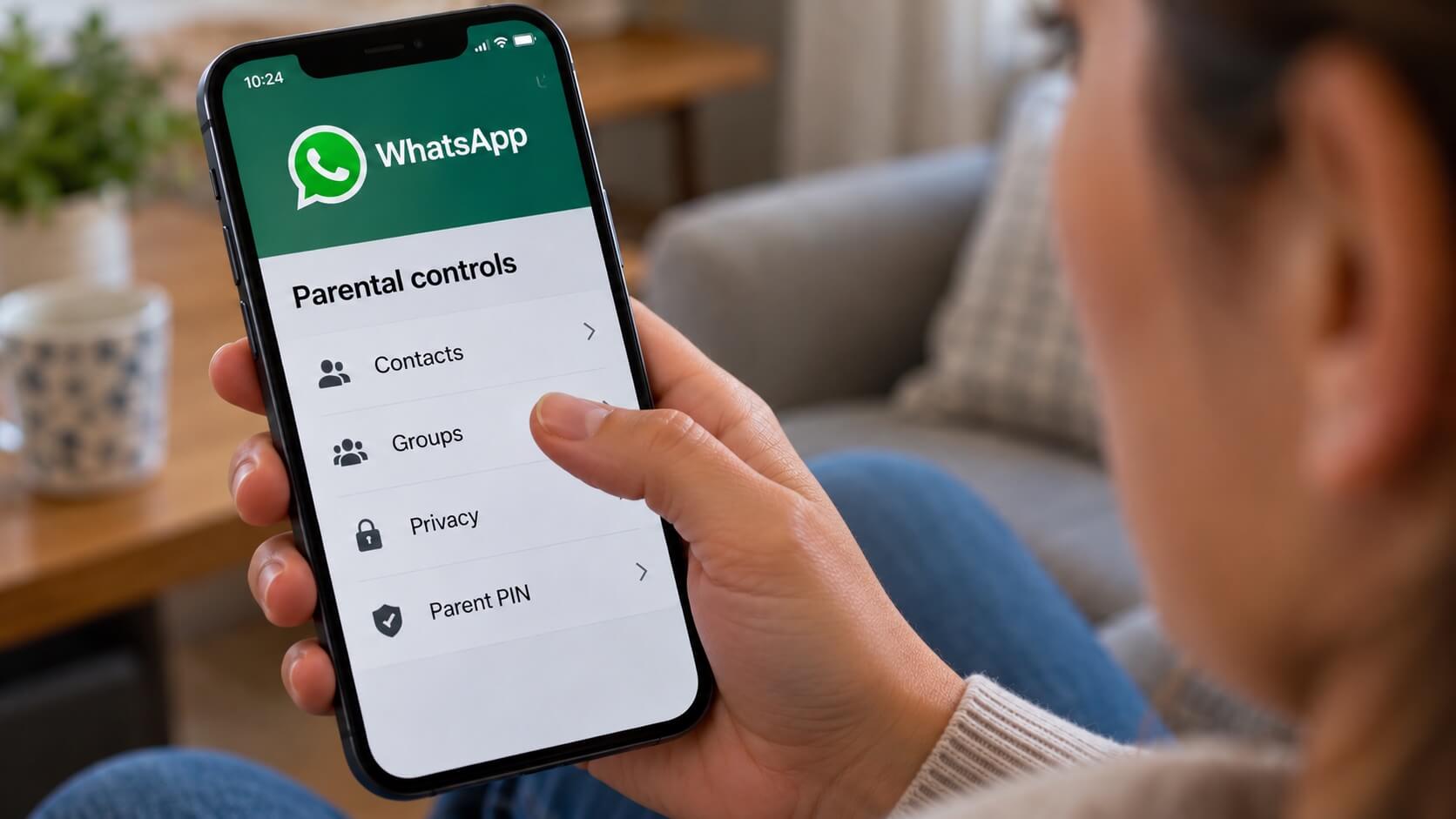
Parents can review requests from unfamiliar contacts, decide which groups their child can join and protect settings with a parent PIN. Available activity alerts can highlight changes that are worth discussing, such as a new contact or a growing group. Preteen accounts focus on messaging and calling, without Status, Channels or Meta AI.
Native parental controls do not give parents a dashboard of private chat content. Understanding what parental controls can see on WhatsApp helps you decide what you need. Contact approval may address your main concern; reviewing supported conversation history is a separate monitoring requirement.
KidsGuard for WhatsApp is designed for that additional visibility on supported setups. The recommendation above explains its uses and the compatibility check needed before choosing it. It should not be assumed to work with every new WhatsApp account type.
4. How to Create a Parent-Managed WhatsApp Account
Keep your phone and your child’s phone nearby. WhatsApp’s registration flow lets eligible families create a managed account and link it to a parent. The wording may vary as the feature rolls out.
Step 1. Prepare both phones
Update WhatsApp on your phone and install the official app on your child’s phone. Have access to the child’s number for verification. Explain which settings you will manage and why before you begin.
Step 2. Choose the parent-managed account option
During registration on the child’s phone, open the three-dot menu and select Create a parent-managed account, where available. Verify the child’s phone number and enter their correct birthdate.
Step 3. Link your account and set the parent PIN
Follow the prompts to connect the accounts and complete the parent checks. WhatsApp’s family guidance says adult verification includes a selfie. Complete this yourself through the official app and set the parent PIN when prompted.
Step 4. Review contacts, groups and privacy
Start with the people your child needs to message. Review the available privacy and notification options together, then ask what they would do if someone unfamiliar contacted them. Practicing that response makes the settings easier to understand.
Update the official app and check whether parent-managed accounts are available to you. Availability varies during rollout. Changing a birthdate or buying another app will not establish eligibility for the native feature.
5. Frequently Asked Questions
Is WhatsApp safe for a 12-year-old?
Check whether an eligible parent-managed account is available in your region, then consider your child’s contacts and readiness. They should know how to handle unfamiliar messages and ask for help. Supervision should fit their needs, rather than relying on an age label alone.
Can parents read messages through WhatsApp parental controls?
Native controls focus on account supervision and do not provide a feed of private conversations. If you need to review supported chat activity, KidsGuard for WhatsApp offers an additional monitoring approach; confirm the device and account requirements before choosing a plan.
Does KidsGuard for WhatsApp replace conversations with my child?
No. It can help you notice activity worth reviewing, but the next step is a conversation. Explain what you monitor, listen to your child’s account of events and agree on how you will help.
Should I use every monitoring feature?
Choose the functions that address your concern. For example, time controls may help with late-night overuse, while reviewing a particular conversation may help you understand an upsetting exchange. Reassess the arrangement as your child becomes more independent.
Help Your Child Build Safer Messaging Habits
Choose age-appropriate WhatsApp settings, agree on who your child can contact and keep asking for help easy. When your family needs more insight into supported chats and activity, KidsGuard for WhatsApp gives you tools to take a closer look and respond with context.


