


 Parental Control
 WhatsApp Tracker
 LINE Tracker
 Phone Surroundings
 GPS Phone Location
 Geofencing App
 Hidden Call Recorder
 Keylogger for Android
 Lock App



ClevGuard Support: Monitor Devices with Others' Permission.
Choosing a parental control app gets easier when you start with one question: do you mainly want a warning when something looks wrong, or do you want to look into specific activity yourself?
That is the most useful difference in a Bark vs KidsGuard Pro comparison. Bark focuses on flagging potential risks. KidsGuard Pro puts more emphasis on letting parents review supported phone activity. For parents who want a closer look at an Android phone, we recommend starting with KidsGuard Pro's demo to see whether that extra visibility matches their needs.
Bark vs KidsGuard Pro: the quick answer
Choose KidsGuard Pro for more hands-on activity review on a supported Android device. Choose Bark if you prefer risk-focused alerts and a subscription covering multiple children and devices. iPhone features differ from Android on both services, so check your child's device before choosing a plan.

Table of Contents
01. Bark vs KidsGuard Pro at a glance
02. Messages and social media: what can you actually see?
03. Why KidsGuard Pro stands out on Android
05. Location, screen time, and daily family use
06. Pricing and value for your family
07. Which app should you choose?
Show more
1. Bark vs KidsGuard Pro at a glance
This table compares the standard Bark monitoring app with KidsGuard Pro's published capabilities. Features listed for Android should not be read as promises for iPhone. “Not listed” means we did not find an equivalent in the official Bark App materials reviewed.Bark Premium App and KidsGuard Pro: key differences:
| What matters | Bark Premium App | KidsGuard Pro |
|---|---|---|
| Main approach | Risk-focused monitoring and alerts | Detailed review of supported activity, plus selected alert tools |
| Reading messages | Surfaces potential issues; not an all-message browsing tool | Review supported messages and records, especially on Android |
| Remote screenshots and screen recording | Not listed for the App | Advertised for supported Android setups |
| Call records and recording | Do not assume call audio is available | Android call logs and call recording are advertised; verify compatibility |
| Location | GPS tracking and location alerts | Location records and geofencing are listed |
| Web and app management | Internet blocking and schedules; extra controls on Bark hardware | Check the exact plan's controls separately from activity monitoring |
| iPhone monitoring | Some content scanning uses Bark Sync or the Desktop App | Separate backup, iCloud, and iOS RT approaches have different requirements |
| Family coverage | Unlimited children and devices under one family subscription | Standard product FAQ describes one monitored device at a time; check family options |
| Best fit | Parents who prefer alerts and broad family coverage | Parents who want to investigate specific activity on a supported device |
2. Messages and social media: what can you actually see?
Imagine your child seems upset after a group chat. One parent wants an alert that the conversation may involve bullying. Another wants to review the available exchange and understand what happened before bringing it up. Those are different needs.
Bark: a heads-up when activity looks concerning
Bark says parents do not get access to every message. Its system surfaces activity that may indicate a problem. That can suit families who want help deciding when to check in without routinely reading day-to-day conversations. See Bark's explanation of its monitoring approach.
KidsGuard Pro: more room to review the details
KidsGuard Pro advertises access to supported Android chat records and shared content. That makes it worth considering if your main frustration with alert-based monitoring is that you still want to look into a specific concern yourself.
The useful question is not “How many apps does it support?” Ask instead: can it show the messages, images, or activity you need on your child's particular phone? If messaging is your main concern, start with the WhatsApp monitoring overview, then confirm the features included in your selected KidsGuard Pro plan.
Bark does support selected Snapchat, TikTok, and Discord monitoring on Android. It would be misleading to say it cannot monitor those apps at all. Its social media coverage guide distinguishes text chats, searches, images, and other activity.
3. Why KidsGuard Pro stands out on Android
For a family comparing parental monitoring apps for Android, KidsGuard Pro's strongest case is the combination of activity records and on-demand viewing tools. You can explore that workflow before deciding whether it is worth paying for.
Look beyond a single notification
A notification starts a conversation, but parents may still have practical questions: who contacted my child, when did it happen, and is there relevant activity elsewhere on the phone? A record-based workflow gives you a way to investigate those questions where the device and plan support it.
The KidsGuard Pro for Android feature page lists chat review, call details, browsing records, and keyboard-input recording. Treat these as specific tools to evaluate, rather than a promise that everything on the phone will be available.
See supported screen activity
KidsGuard Pro also advertises remote screenshots and screen recording. These are useful differentiators for parents who want to understand what is displayed at a particular moment. A screenshot is a snapshot, though; it cannot by itself reconstruct an entire conversation or fill in missing history.
ClevGuard's remote-feature overview also lists call recording, surrounding-audio recording, and camera tools, with platform limitations. These are sensitive capabilities: use them only where you have the right to do so, and explain appropriate monitoring boundaries to your child.

Our take: these tools make KidsGuard Pro a compelling Bark alternative for parents who want more control over what they review. They do not establish that it detects threats more accurately, works without interruptions, or captures every activity.
See whether the extra detail helps
Explore the demo dashboard before choosing a plan.
Explore the Demo4. Bark vs KidsGuard Pro on iPhone: check the method first
Neither product should be judged on iPhone by its Android feature list. Before you compare screenshots, messages, or update speed, establish how the iPhone's data will be accessed.
Bark says supported iPhone content is scanned through Bark Sync or its Desktop App. Its iOS coverage page explains the scanning setup and identifies apps it cannot monitor on iOS. This is separate from installing its child app for internet rules and location features.
| Method | What to check | Practical limitation |
|---|---|---|
| Non-jailbreak iOS software | Computer setup, backup availability, supported data | New records depend on new backups; not continuous live monitoring |
| iCloud monitoring | Authorized account access, verification, enabled sync | Freshness depends on data reaching iCloud |
| iOS RT | Exact supported iOS release and jailbreak requirements | A separate route, not the default option for every iPhone |
The ClevGuard setup and compatibility FAQ explains backup timing and account verification. Some official compatibility descriptions differ between pages, so confirm your child's exact model, iOS version, and required features with support before subscribing.
If your priority is reviewing available iPhone records, KidsGuard Pro is worth exploring. If you expect the same live features advertised for Android, resolve that expectation before you buy.
5. Location, screen time, and everyday family use
Location is useful, but it is not the biggest difference
Both services advertise location tools. KidsGuard Pro's phone location tracking overview describes location records, while its geofencing guide covers marked-area alerts. Look at which records and notifications fit your routine rather than choosing on the word “GPS” alone.
Location freshness depends on the phone and its connection. If a child is late home, check the timestamp before treating a map pin as their current position.
Monitoring activity and enforcing limits are different jobs
Bark App can block internet access to apps and websites and schedule online access. Its hardware adds controls such as full app blocking and specific app time limits. That distinction is documented in Bark's screen time and filtering guide.
For KidsGuard Pro, verify app limits and website-blocking options in the exact version you are considering. Do not assume a screen-recording feature also blocks an app. If your biggest concern is bedtime access rather than understanding phone activity, make that the deciding requirement.
Choose a routine you can keep up with
More information only helps if someone reviews it. Agree on what you will check, how often, and what would prompt a conversation. As children become more independent, revisit those boundaries together.

6. Bark vs KidsGuard Pro pricing: what are you paying for?
KidsGuard Pro makes its case through deeper activity review, rather than a lower price. Compare the actual billing amount and the number of devices your household needs.
| Billing | Bark Premium App | KidsGuard Pro standard store listing |
|---|---|---|
| Monthly | $14 billed monthly | $49.99 billed monthly |
| Quarterly | Not listed on the page reviewed | $75.99 every 3 months |
| Annual | $99 billed yearly | $139.99 billed yearly |
| Annual monthly equivalent | $8.25 | About $11.67 |
Sources: Bark pricing and the ClevGuard store. Monthly equivalents are calculations, not monthly billing offers. Prices, taxes, promotions, renewal terms, and device allowances may change; confirm them at checkout.
The annual difference is $40.99, or roughly $3.42 per month. If you actively use the additional viewing tools on a supported device, that may be a reasonable trade-off. If you only need alerts, paying for deeper review may offer little benefit.
Bark's family subscription covers unlimited children and devices. KidsGuard Pro's standard product FAQ describes one monitored device at a time, with other options advertised separately. For several children, compare the full household cost. Bark Sync is also a separate optional cost for families choosing that iPhone scanning route.
7. Which parental control app should you choose?
We recommend KidsGuard Pro if you want a closer look
- Your child uses a supported Android phone.
- You want to review particular conversations or activity, rather than rely primarily on alerts.
- Screenshots, screen recording, or detailed records meet a specific need.
- You are comfortable completing setup and making time to review the available information.
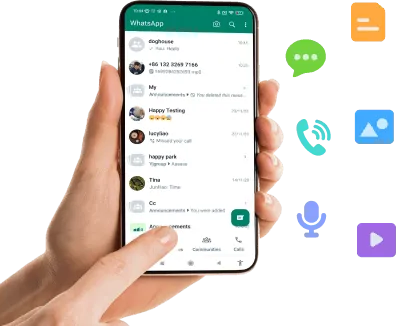
KidsGuard for WhatsApp: Best WhatsApp Parental Control App
- Powerful WhatsApp parental control app compatible with Windows, Mac, iPhone, and Android devices
- Allows tracking all WhatsApp activities including chats, calls, media files, call recording, and more.
- Deleted and expired media files can also be checked
- Works as an excellent location tracker by tracking GPS
- WhatsApp data can be exported in CVS format
- Allows you to monitor and view WhatsApp status even if it is hidden
- WhatsApp screenshots of the target phone can be taken
- Allows keeping control of kids' WhatsApp by setting a screen time limit, keyword alert, and WhatsApp tracking.
For that combination of needs, KidsGuard Pro is the stronger option to explore first. Its value is the ability to ask more specific questions about phone activity and examine the available records yourself.
Bark may fit better if alerts and family coverage come first
Choose Bark when you want potential issues brought to your attention and you do not want to routinely browse messages. Its unlimited-device subscription is also a meaningful advantage for a larger household. Giving that advantage its due makes the choice clearer: buy the workflow your family will actually use.
How to Set up Parental Control with KidsGuard for WhatsApp
Step 1. Visit the official site page, create an account, and get a subscription plan to access all app features.

Step 2. On the target phone, download the KidsGuard for WhatsApp app from installapk.net. For setting up the app, follow the instructions as they appear on the device.

Step 3. Next, complete the installation process, log in using your valid account, and verify the setup.

Step 4. Move to the dashboard and start monitoring and tracking all the WhatsApp activities of the target phone.

Ready to see whether it fits?
Explore KidsGuard Pro's dashboard, then confirm the right option for your child's phone. It is a practical next step if you want more detail than a risk alert alone.
9. FAQs about Bark and KidsGuard Pro
Is KidsGuard Pro better than Bark?
KidsGuard Pro is the better option to explore for detailed activity review on supported Android devices. Bark may suit parents who prefer risk-focused alerts and unlimited family device coverage. The better choice depends on your child's device and how involved you want to be in reviewing activity.
Does Bark let parents read every text?
No. Bark says its alerts surface potential concerns instead of giving parents access to every message. That is a central difference from the detailed review approach advertised by KidsGuard Pro.
Does KidsGuard Pro work the same way on Android and iPhone?
No. Android, non-jailbreak iOS software, iCloud monitoring, and iOS RT have different requirements and capabilities. Backup-based iOS monitoring is not continuous live monitoring.
Can I install KidsGuard Pro remotely on an Android phone?
The published Android setup requirements call for access to the device to install and configure the software. Creating an account on your own phone does not remotely install it on your child's phone.
Can either app guarantee that it catches every risk?
No. Coverage, device settings, connectivity, and app changes can affect what is available. We have not performed a comparative accuracy test and do not claim that one service detects every risk better.
Is there a free KidsGuard Pro trial?
You can explore the demo and create an account for free. Do not assume that means full-feature monitoring is free. Check the current offer and subscription requirements before setting up a device.


