



 Parental Control
 WhatsApp Tracker
 LINE Tracker
 Phone Surroundings
 GPS Phone Location
 Geofencing App
 Hidden Call Recorder
 Keylogger for Android
 Lock App



ClevGuard Support: Monitor Devices with Others' Permission.
Your child is ready for a first phone. You want them to stay connected, but you also want sensible limits and a way to understand what happens online. Which parental control apps actually match those needs?
Start with the problem you want to solve: late-night scrolling, inappropriate websites, concerning conversations, or an unfamiliar journey home. This guide compares seven options and recommends KidsGuard Pro for parents who want more detailed visibility into supported phone activity, especially on Android.
This is a research-based comparison using published reviews and vendor documentation, rather than a hands-on performance test. Our recommendation reflects the use case below; the linked reviewers have their own picks.
Before We Start
Monitoring and restriction serve different purposes. Reviewing browsing history does not automatically block a website; viewing app activity does not necessarily enforce a time limit. Check the exact product version, device compatibility, and supported controls before subscribing. Discuss what you will monitor with your child and use only devices and accounts you are authorized to supervise.
Table of Contents
What Parents Want from Parental Control Apps
Parental Control Apps Compared
Show less
1. What Parents Want from Parental Control Apps
Review lists help narrow the choices, but parent discussions explain the questions behind a purchase. In the Kidgy discussion, the original poster wants lasting free screen time limits and web filtering for an eight-year-old's tablet, without an immediate upgrade.
The Reddit best parental control app disscussion starts with a different concern: a child's first iPhone, inappropriate content, and social media monitoring. Replies also raise setup complexity and the value of trying tools before committing.
In another Reddit parents of teens discussion, parents debate how much oversight a thirteen-year-old needs. Some describe unreliable controls; others emphasize visible supervision and conversations. These are individual experiences, and some replies promote products. They are useful for identifying needs, but cannot establish which app performs best.
- Affordable basics: Is there a genuinely free option, or just a trial?
- Useful coverage: Does the tool support the child's actual device and apps?
- Manageable setup: Can you maintain permissions, connections, and updates?
- Clear boundaries: Will your child understand the rules and what you can see?
2. Parental Control Apps Compared
When choosing a parental control solution, industry reviews emphasize that no single tool fits every household—some excel at AI risk detection, while others specialize in cross-platform screen time management or deep social media monitoring. To help you make an informed decision, we have broken down and compared 7 of the top-rated parental control apps available today.
| App | Consider it for | Cost model | Check first |
|---|---|---|---|
| KidsGuard Pro | Detailed phone activity review | Trial available, Paid monitoring plans | Android and iOS setup differ |
| Bark | Potential-risk alerts | Paid; trial available | iOS content-monitoring requirements |
| Qustodio | Routines and activity reports | Free tier; paid plans | Feature and device allowances |
| Google Family Link | Basic Android supervision | Free | Child-device compatibility |
| Apple Screen Time | Built-in Apple device rules | Included with Apple devices | Family Sharing setup |
| Mobicip | Screen time management | Subscription | Supported devices and plan |
| Norton Family | Family online rules | Subscription | Operating-system coverage |
Compare the total subscription cost and device allowance. A free parent account, an interactive demo, and a free monitoring plan are different offers.
3. KidsGuard Pro: Our Recommendation for Detailed Phone Activity Review
Time limits can tell a child when to put the phone down. Parents may also want context about the apps and conversations behind that usage. KidsGuard Pro is worth considering when supported activity records are central to your family safety plan.

Core Features of KidsGuard Pro
- Extensive Social Media Tracking: Real-time visibility into over 15 messaging and media applications, captures messages, media attachments, and app screen time duration.
- Keystroke Logging & Suspicious Keyword Alerts: Parents can set custom alert keywords related to cyberbullying, or drugs to receive notifications.
- Remote Capture & Environment Monitoring: Take screen recordings, screenshots, or record audio to verify the child's immediate surroundings.
- Real-Time GPS & Dynamic Geofencing: Continuous 24/7 location tracking. Geofences allow parents to mark safe zones, triggering instant alerts upon entry or exit.
- Zero-Root Installation & Stealth Operation: Full functionality works out-of-the-box without complex rooting procedures.
What Can Parents Review?
Phone activity: The Android guide lists messages, call logs, app activity, and browser history.
Supported social apps: Examples in the Android guide include WhatsApp, Facebook, Instagram, and Snapchat.
Device-specific records: Available information depends on the platform, permissions, connection, and selected monitoring method.
And more...
Video Tutorial: How to Install KidsGuard Pro for Android
Our recommendation: Shortlist KidsGuard Pro if you need supported activity records and can complete the required setup. For a first tablet that only needs bedtime limits, start by checking the free built-in options.
Explore KidsGuard ProView Demo
4. Bark, Qustodio, and Other Parental Control Apps
Bark: Consider It for Potential-Risk Alerts
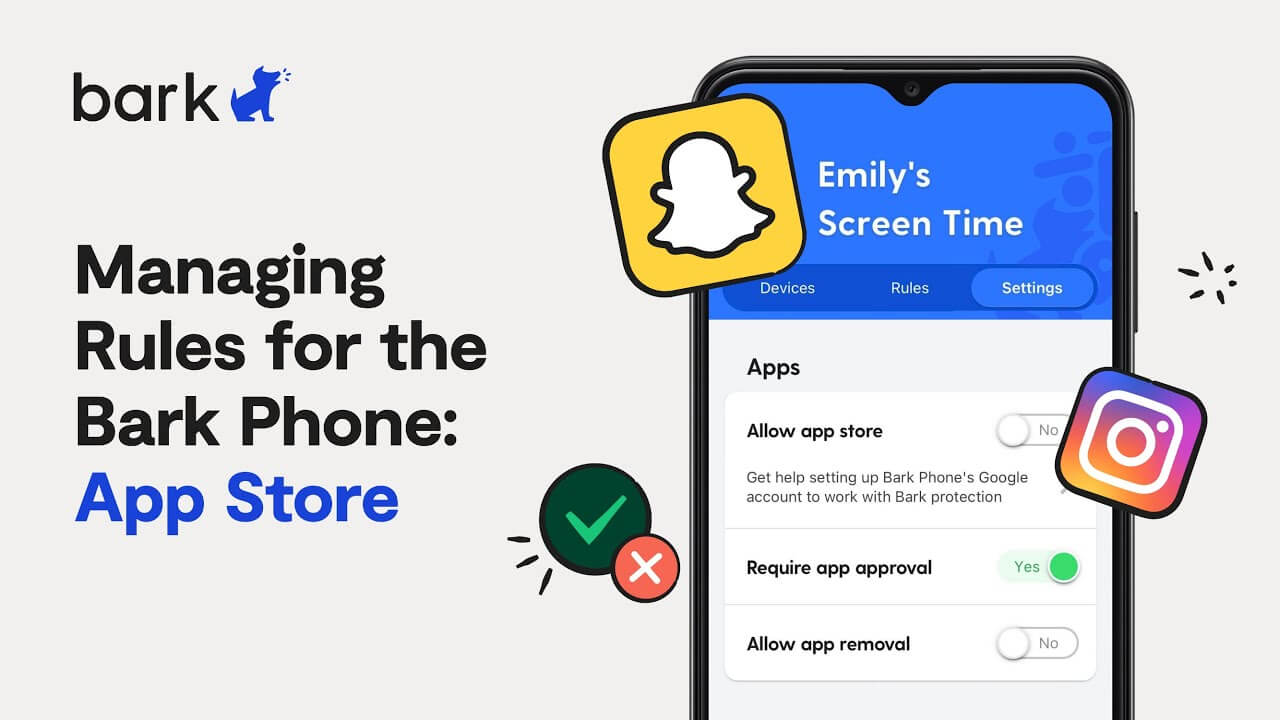
Bark emphasizes alerts about potentially concerning content in supported texts, social platforms, and other sources. It also offers screen time schedules, blocking, and location features. This makes it a useful comparison if you prefer alerts that prompt a check-in.
For iPhone and iPad content monitoring, Bark describes its Bark Sync accessory as a way to scan device content. Check the current iOS requirements and additional costs. Installing a parent app alone does not establish complete content monitoring.
KidsGuard Pro vs. Bark: Compare the activity records available in your chosen KidsGuard Pro setup with the alerts and supported sources in Bark. Decide which information you need and how often you want to review it.
Qustodio: Consider It for Routines and Reports
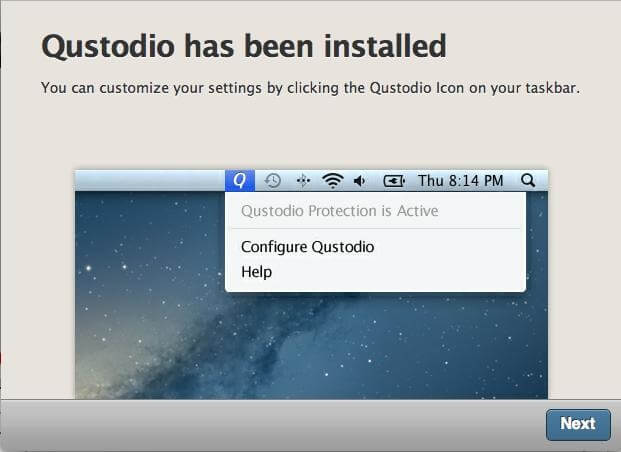
Qustodio offers time limits, scheduled routines, content and app restrictions, activity reports, and location tools. Its documentation also describes social monitoring, so it deserves a current feature check rather than being dismissed as a timer-only app.
Capabilities vary: Qustodio notes that its panic button is Android-only, while iOS call and message monitoring requires a Windows or Mac computer. Check the free tier and paid plan allowances against your household's devices.
Google Family Link: A Free Starting Point for Android
Google Family Link provides screen time limits, app management, Google Play approvals, and controls for Google services such as Chrome and Search. Its child-device supervision supports certain Android and Chrome devices; a parent's ability to use an iPhone does not mean the child's iPhone receives the same controls.
It is a practical starting point when you want basic Android parental controls. Review Google's age-related account rules for your country as your child grows.
Apple Screen Time: Built-In Controls for Apple Families
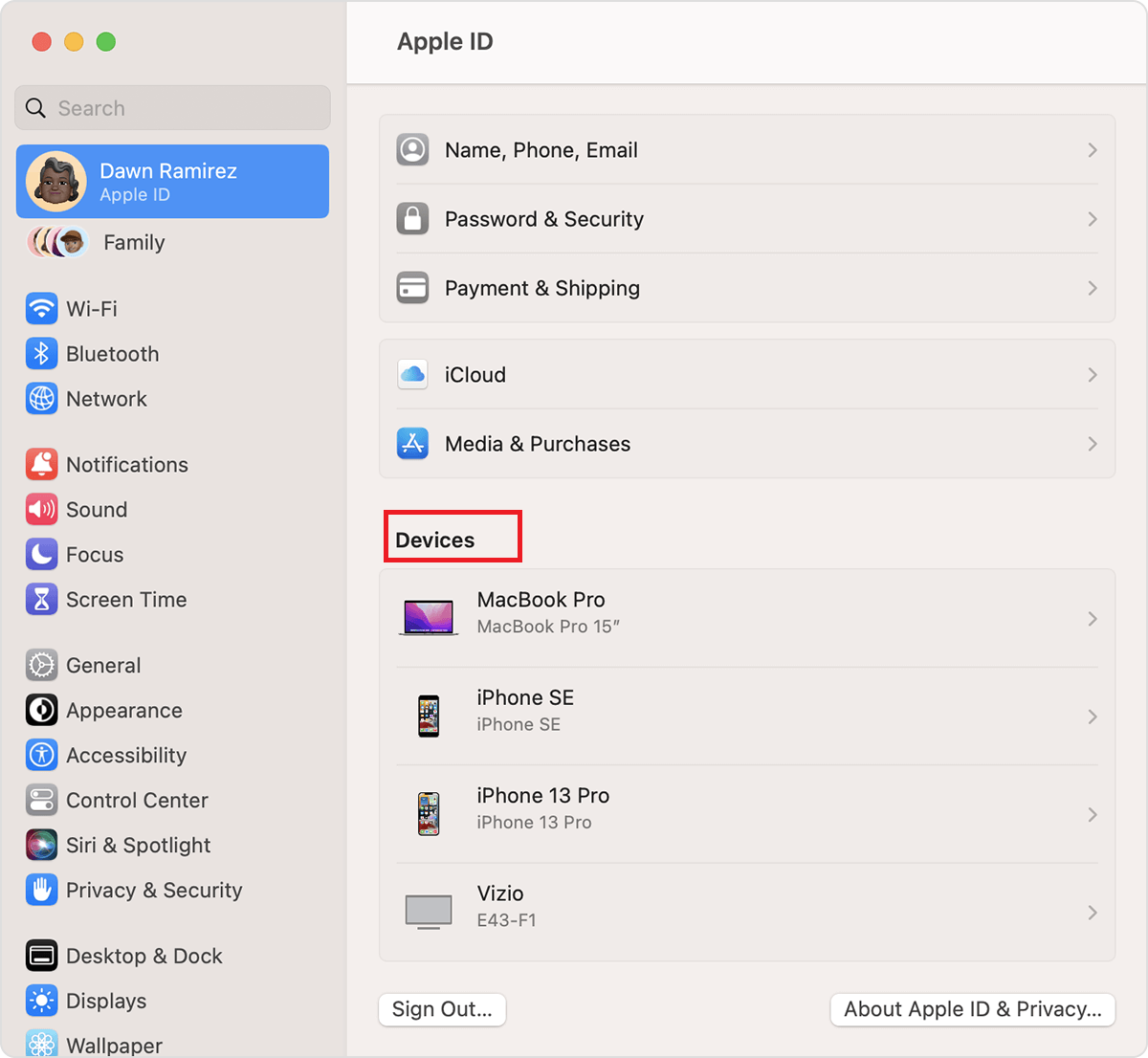
Apple's family safety tools include Screen Time, app and website controls, and purchase approvals through Family Sharing. They are a sensible first step for parents who want rules on an iPhone or iPad without adding a monitoring subscription.
Start with a Child Account and appropriate family settings. Decide whether those controls meet your needs before adding another service for activity monitoring.
Mobicip: Another Screen Time Option
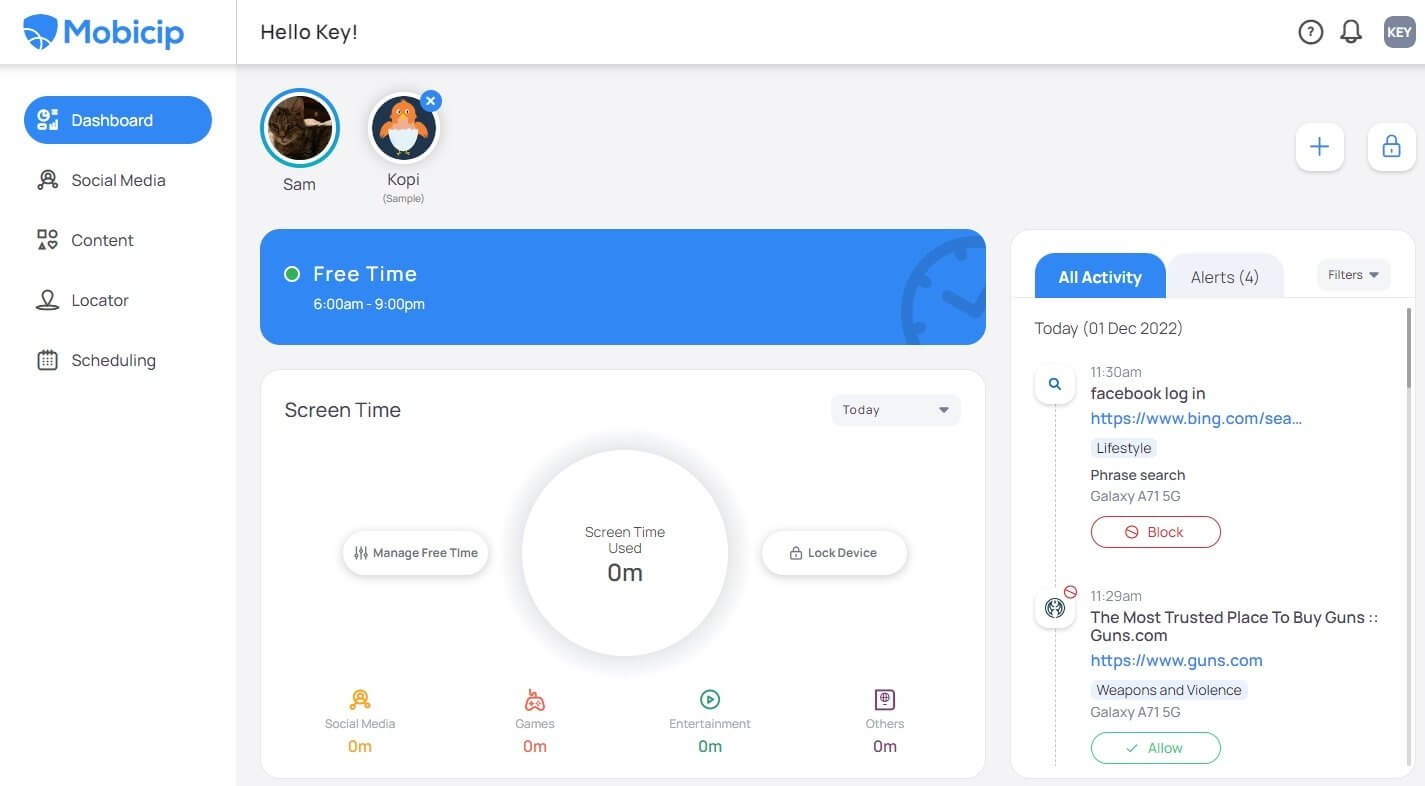
PCMag identifies Mobicip as a choice for screen time management. Add it to your shortlist if schedules are your main concern, then compare its current plan coverage and setup requirements with Qustodio and the built-in tools.
Norton Family: Consider It for Online Rules
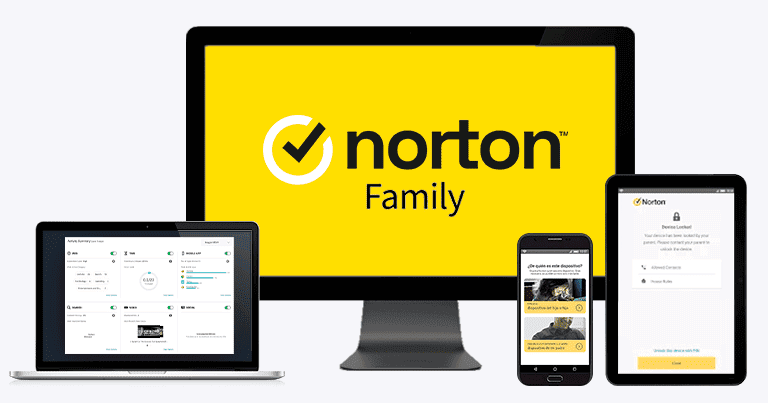
PCMag highlights Norton Family for establishing online rules. It is another option when your goal is a structured family approach. Verify support for each child's operating system before choosing a subscription.
5. How to Set Up KidsGuard Pro
Use the official KidsGuard Pro guide for your selected version.
Step 1. Choose the Matching Plan
Click on the button below to purchase a premium plan in order to use all advanced monitoring features. You can choose 1-month plan, 3-month plan or 1-year plan. The pricing will vary accordingly.
Step 2. Follow the Device Setup Guide
For Android, open the setup instructions in your account, install the Assistant on the child's device, and configure the required permissions.
Step 3. Verify the Dashboard
Sign in, check that the device appears, and allow time for the first data sync.
The non-jailbroken iOS guide uses computer software and backups. USB is one option; Wi-Fi backup requires an initial connection and the same network. Data freshness depends on the backup. The separate iCloud method has account-verification requirements.
Complete setup together, explain which information will be reviewed, and confirm that necessary school apps and family communication remain available under your rules.
6. How to Choose the Right Parental Control App
Write down three tasks before comparing feature lists. For example: limit games on school nights, restrict inappropriate websites, and review a specific supported activity when a concern arises. Ask each provider whether those tasks work on your child's exact device.
Check coverage: Count devices, children, and operating systems.
Check setup: Look for computer, network, account, and permission requirements.
Check value: Compare full billing terms and the features you will actually use.
Check together: Agree on what is monitored, when you review it, and when restrictions can change.
Use the available demo or trial to evaluate the experience, and verify your settings after installation. A longer feature list is useful only if its features solve your family's problems.
7. FAQs About Parental Control Apps
What are the best parental control apps for my family?
Match the app to the job. Consider KidsGuard Pro for supported activity review, Bark for potential-risk alerts, and Qustodio for routines and reports. Family Link and Apple Screen Time are useful starting points for basic device rules.
Are there free parental control apps that are not just trials?
Yes. Google Family Link is a free option for compatible child devices, while Screen Time is included with Apple devices. Their scope differs from paid monitoring tools, so check the specific task you need.
Is KidsGuard Pro free?
The supplied guide requires a paid plan for advanced monitoring. An account signup or demo should not be understood as free ongoing monitoring.
Does KidsGuard Pro work the same way on Android and iPhone?
No. Android uses an installed Assistant and dashboard workflow. The supplied non-jailbroken iOS instructions use computer-based backups. Choose the relevant version and verify its current features before purchase.
Can parental control apps prevent every online risk?
No app can guarantee complete protection. Security.org also advises combining technical tools with open conversations. Encourage your child to bring concerns to you, even when an app produces no alert.
Conclusion: Choose Parental Control Apps Around Your Family's Needs
The right parental control app should give you information and controls you can use. We recommend considering KidsGuard Pro when detailed, supported phone activity review is a priority. Compare it with Bark and Qustodio, and check whether free built-in tools already cover your child's needs.
Explore the demo, confirm compatibility, and choose a plan with a clear understanding of the setup and available features.


